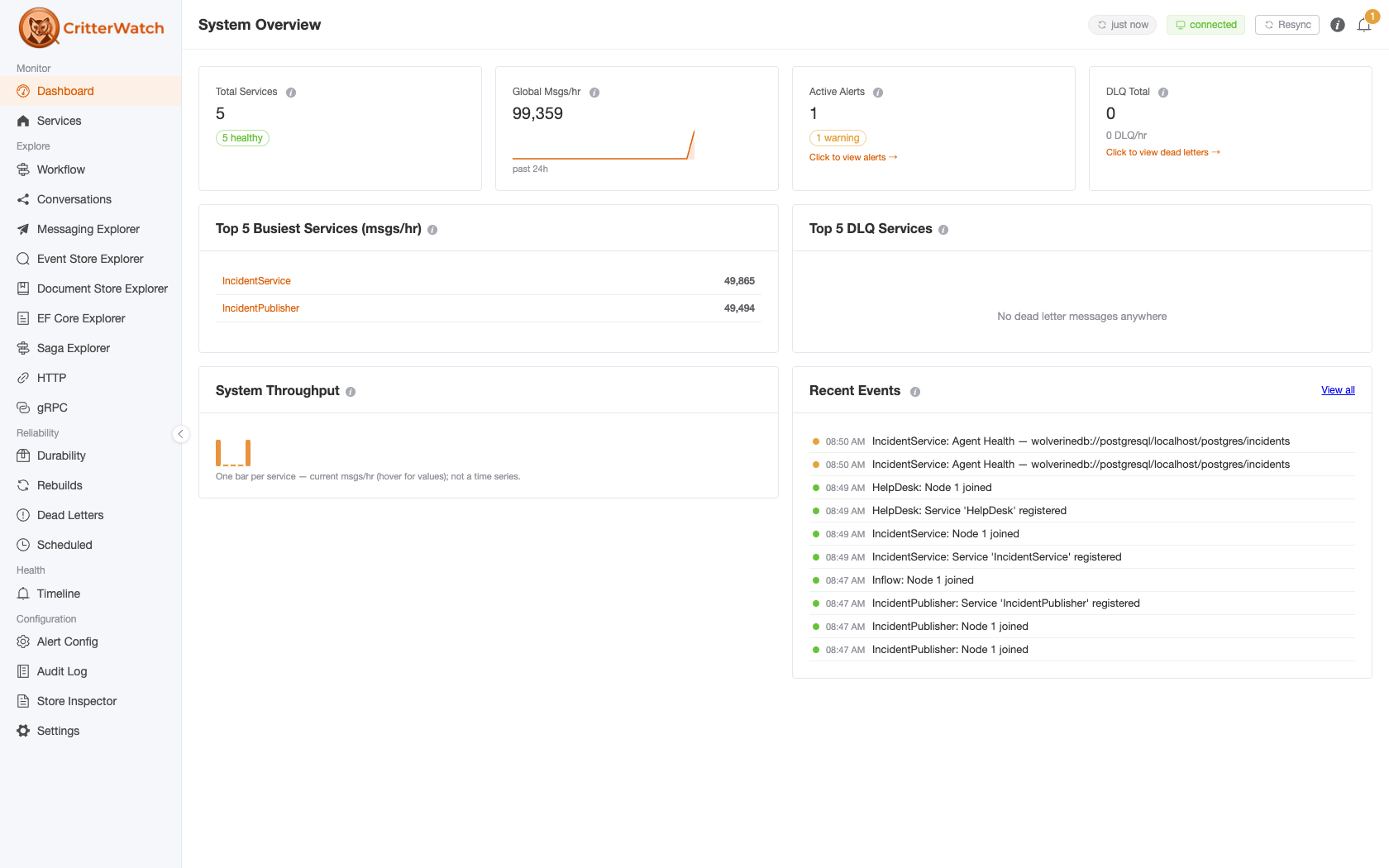

CritterWatch 1.1.0-rc.3 is on NuGet tonight with the official 1.1 release expected this week. As a preview, let's talk about the all important dead letter queue management (DLQ) features in CritterWatch. You don't want to ever have to use these features of course, but unexpected things happen and sooner or later you'll either want the DLQ management functionality or at least feel better knowing it's there.
Where everything lives
- Documentation: critterwatch.jasperfx.net is the full reference: installation, transports, deployment and clustering, RBAC, the MCP server, and a page per console screen. The Dead Letters page is the reference for everything below.
- Buy a license: the CritterWatch plans section of our products page has the Starter, Professional and Enterprise tiers and their per-service limits, with a buy link on each. You can also request a trial license to evaluate it first.
- Or bundle it with support: every JasperFX support plan offers CritterWatch as an add-on, and it's included outright with Premium. If you were already weighing a support contract, that's usually the better arithmetic.
- Report a bug or ask for something: JasperFx/ProductSupport is the public issue tracker for CritterWatch, and RC feedback is very welcome there.
- Talk to us: the #CritterWatch room in the Critter Stack Discord.
Why dead letters need a console
Most Wolverine applications eventually move a message to its dead letter queue. A downstream API was down for twenty minutes. Some weird combination of input came in from an external partner that nobody anticipated. A load test left a few thousand messages that were never going to succeed. Wolverine's durable inbox keeps the message, the exception and the envelope, and it stops retrying. Then somebody has to decide, message by message or by the thousand, whether to replay, fix and replay, or throw away.
That decision is what the Dead Letters page in CritterWatch is for, and 1.1 is a substantial step forward for it. Short version:
- Bulk actions act on exactly what they counted. The number a confirmation quotes is the number of messages the action touches, across every service, database and tenant.
- Every replay, discard and edit is followed to the end. You can see how many databases answered, how many messages each one affected, and which ones failed and why.
- Edit and replay is audited properly and gated by its own permission. We also fixed some bugs from 1.0. Sigh. More on that below.
- AI agents get the same tools over MCP. An agent can find, explain and replay dead letters for you. It has to ask, and get the answer back from the server, before it can permanently delete one.
The MCP endpoints can be gated by RBAC authorization of course!
The Dead Letters page
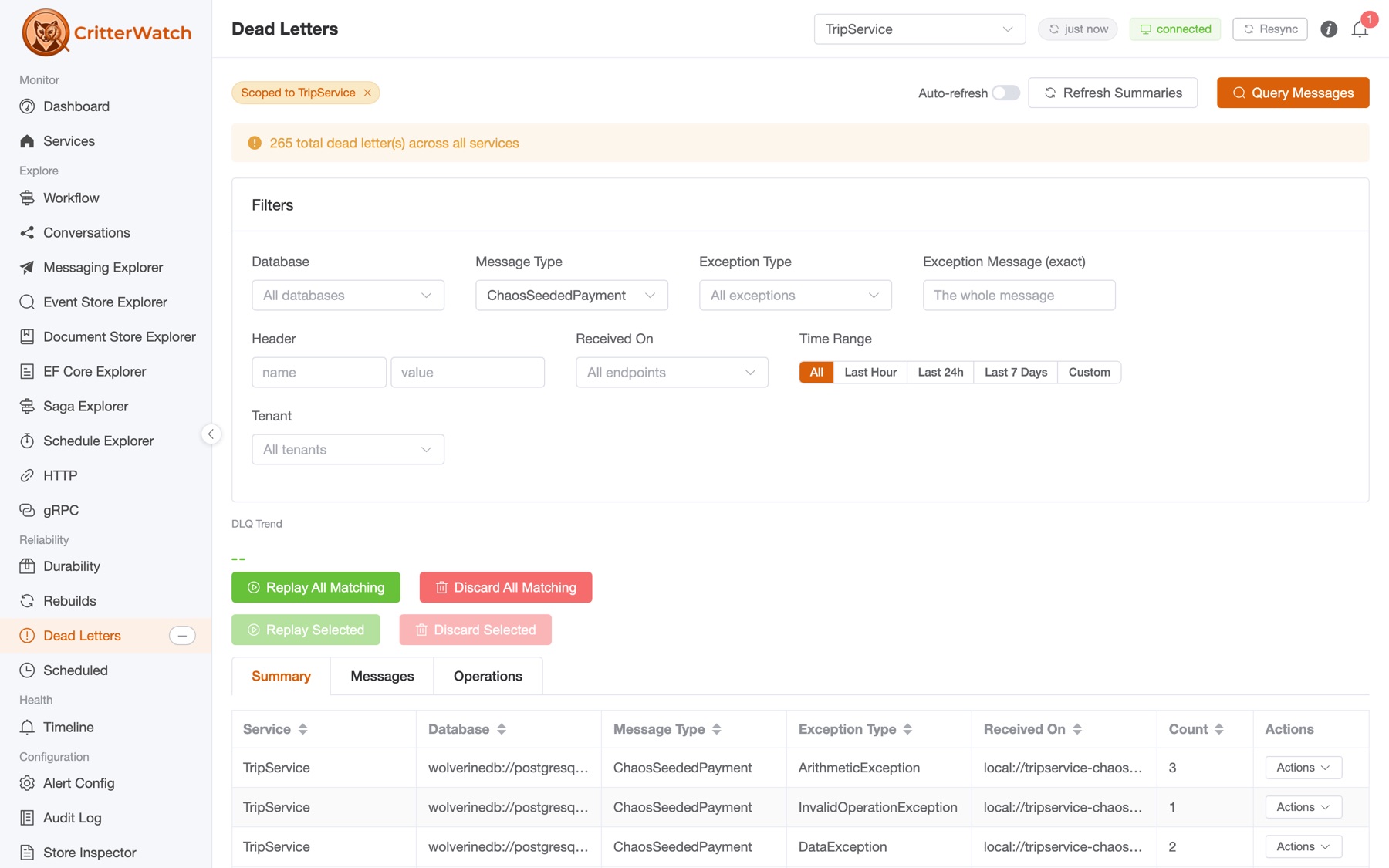
This functionality is supported for every possible message storage you can use with Wolverine including PostgreSQL, SQL Server, Oracle, SQLite, MySQL, Cosmos DB, and RavenDB
The page reads every message database of every service CritterWatch monitors: whichever of those stores the service uses, every tenant database of a multi-tenant service, and every node. It folds the answers into one summary: a row per service × database × message type × exception type × receiving endpoint. Scope it to a service, filter by type, exception, endpoint, header, tenant or time range, then either act on a whole group or drill into the individual messages.
Two things it will not do, by design:
- It never shows a partial answer as a complete one. Each service announces the databases it is about to read, and each database answers or reports that it could not. A store that fails to answer is called out by name. It does not quietly render as an empty queue, which is a mistake we have been bitten by before and are not going to make again.
- It never acts on more than it showed you. That is the first of the 1.1 changes.
Bulk replay: acting on exactly what you counted
Scope the page, filter it, and press Replay All Matching:
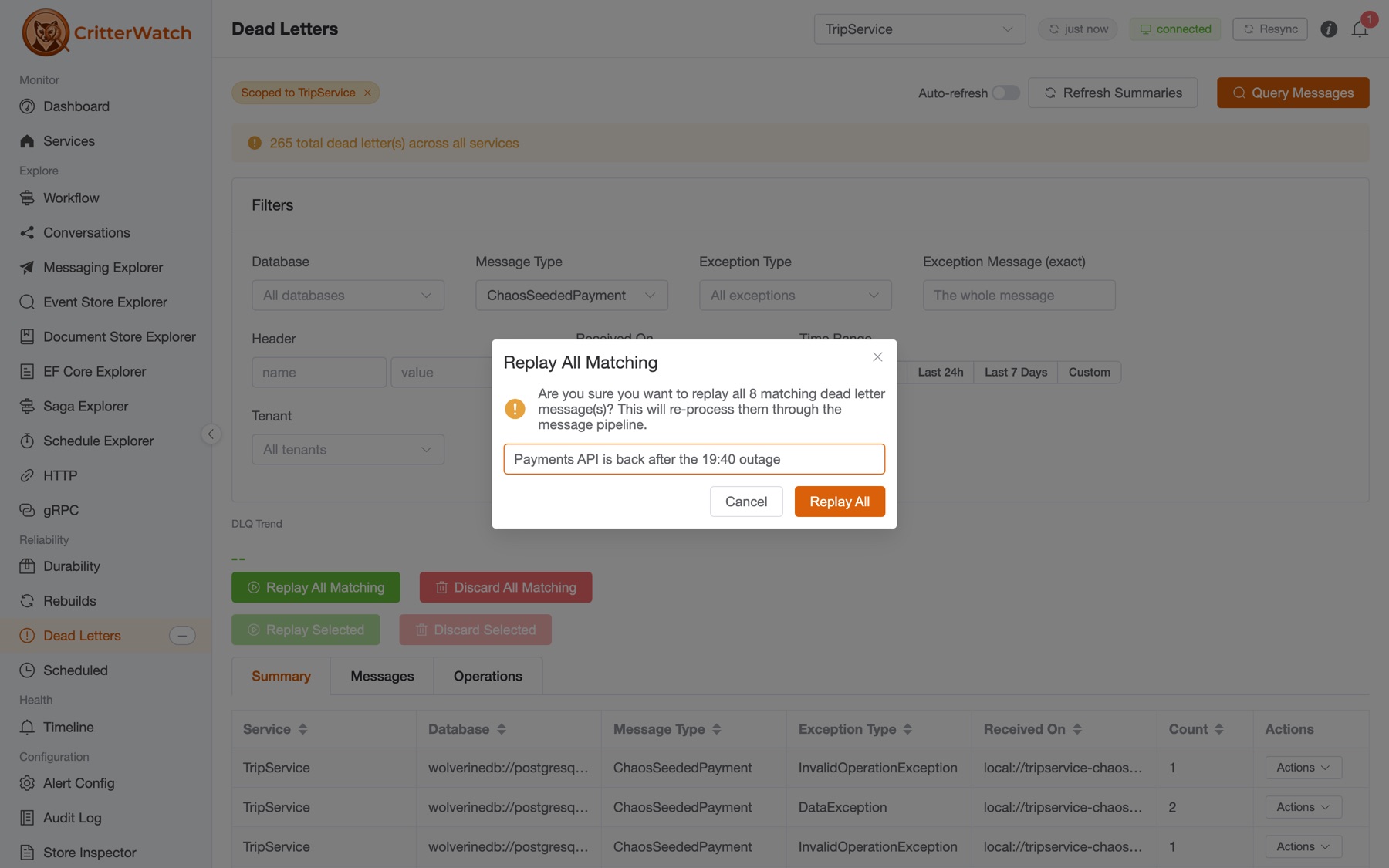
It sounds trivial that the "8" in that dialog is exactly the 8 messages the replay touches. Before 1.1 it was not always true, and that is the worst kind of bug in an operations tool: one where the confirmation is honest and the action isn't. We found five places where the count and the action came from different queries. Two examples:
- A summary row's Replay All acted on every endpoint with that message and exception type, not only the row's own endpoint.
- The confirmation quoted all-time counts while the action used the selected time range.
All five are fixed, and each action now sends the query its count came from. Where the console cannot count precisely, because a filter is one the server-side summary cannot see (a header filter, say), All Matching switches itself off and tells you why. You can still select the individual messages and act on exactly those.
The text box is new too. Every bulk action can carry a reason, which is recorded on its audit row and shown next to the operation for whoever looks at it later. In this case, that's probably you at 2 AM.
Following an operation to the end
A replay is not one action. It is a command relayed to each service, run against each of its databases, often in parallel, and each database succeeds or fails on its own. Until 1.1, the console fired it off and hoped. A failed replay was thrown into the monitored service's own error handling, where it was retried or dead-lettered itself, and the console never heard about it.
In 1.1 every database answers. The new Operations tab follows each replay, discard and edit until all of them have:
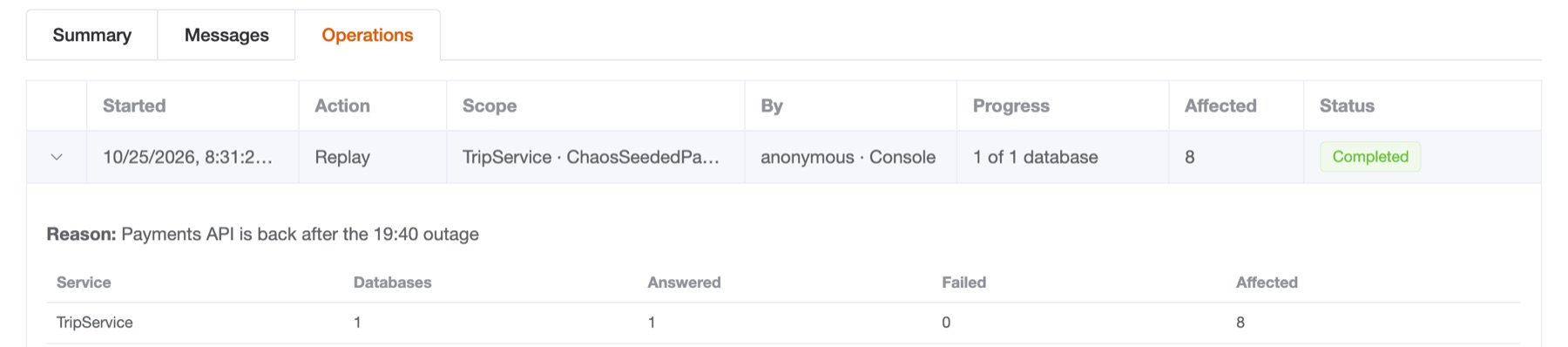
- Progress across databases. "4 of 6 databases" for a fleet-wide discard over a multi-tenant service, settling only when the last tenant database has reported back.
- How many messages it affected. With Wolverine 6.54 the relational stores report an exact count per database. A store that cannot count says not reported, never 0.
- Where it failed, and why. Each failed database is listed with its error, and the others carry on.
- Who ran it, and how: the user, the channel (Console or MCP, and which MCP client), and the reason.
A service still on an older client runs the operation but cannot report back. After ten minutes of silence its operation reads Unconfirmed, not failed: the console says only what it was actually told.
Edit and replay
Some messages will never succeed as written. The fix is in the data, not the handler. Open one and the detail drawer shows the whole envelope, the exception and the body:
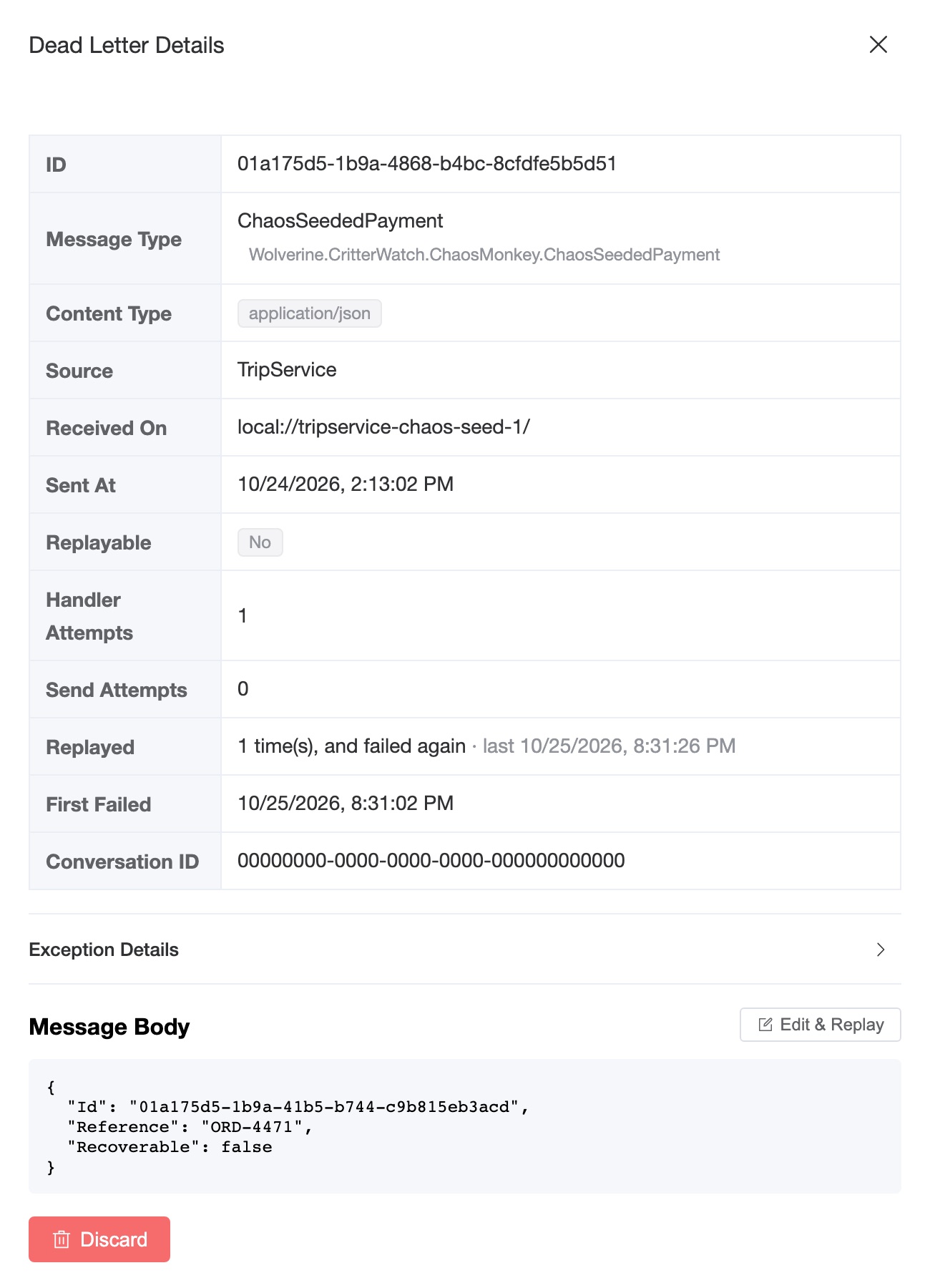
Note the Replayed row. Wolverine 6.54 records each dead letter's replay history: how many times it has been replayed and failed again, when it last was, and when it first failed. This one came back from the bulk replay above. A message that keeps returning is not a transient failure, and replaying it a third time is not going to help. A dead letter from a store that does not record the history says Not recorded rather than pretending it was never replayed.
Click Edit & Replay, correct the body, and save:
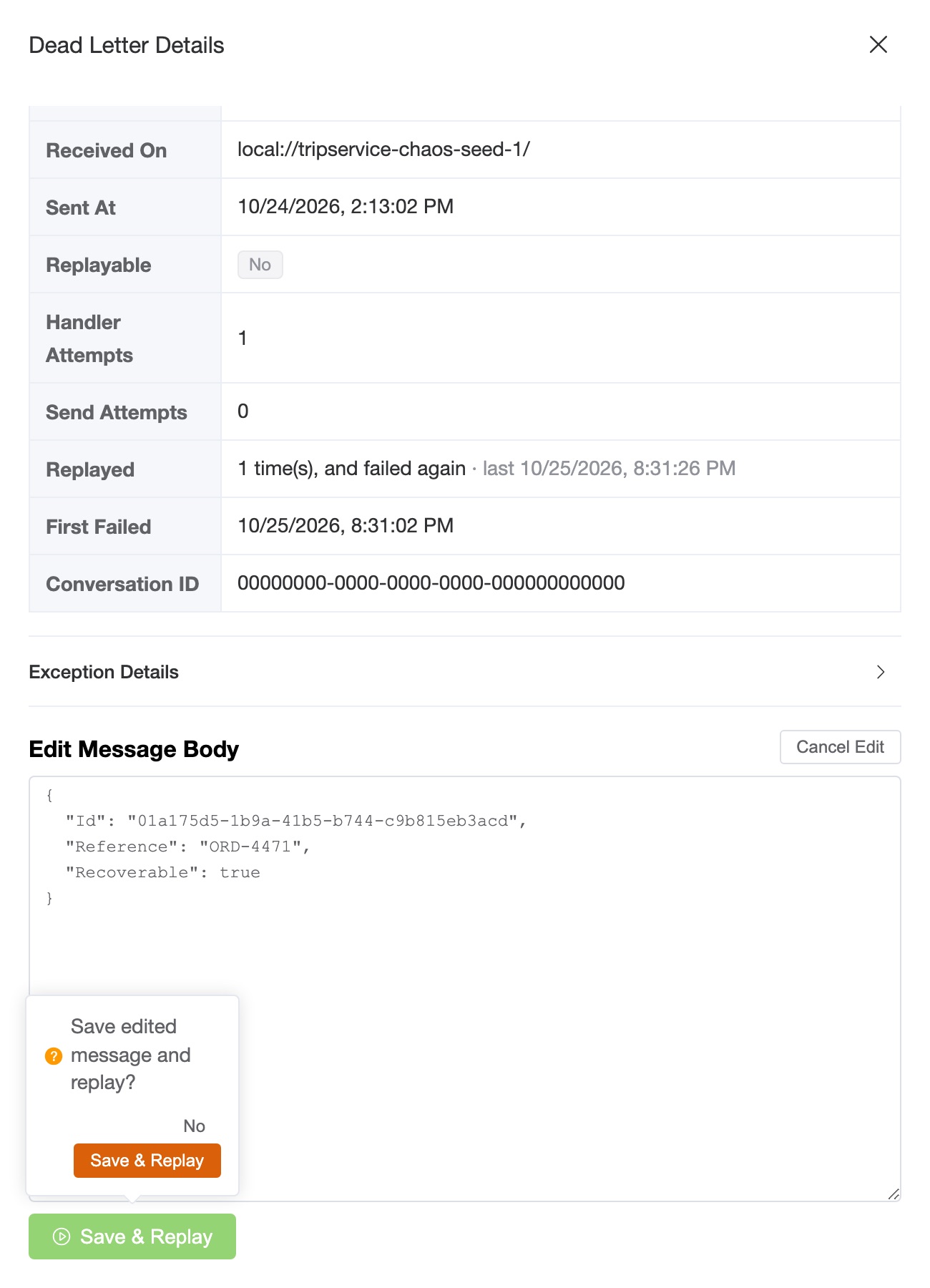
The edited message goes back through the handler. In this walkthrough it succeeded and left the queue, and the Operations tab recorded it as an Edit & Replay of one selected message.
Three details matter here:
- Editing has its own permission. On a console with role-based access control, Edit & Replay needs
dlq.editas well asdlq.replay. Rewriting a message is a different act from replaying it, and in 1.0 anyone who could do one could do the other. - The audit row records that the body changed, never the body. A message can carry anything, card numbers included. The row records the body's length and the message id.
- It works. We owe this one to a user who reported, on the Critter Stack Discord, that Save & Replay did nothing at all in 1.0.1: no confirmation, no error, no command. They were right. A confirmation popover had stopped binding to its button, and it was not the only one: fifteen operator actions across the console had the same fault. They are all fixed in 1.1. Tests now really click those buttons and confirm, where they used to stub the popover away, and a source check fails on the pattern that broke them. Save & Replay itself has an end-to-end browser test.
Everything is audited
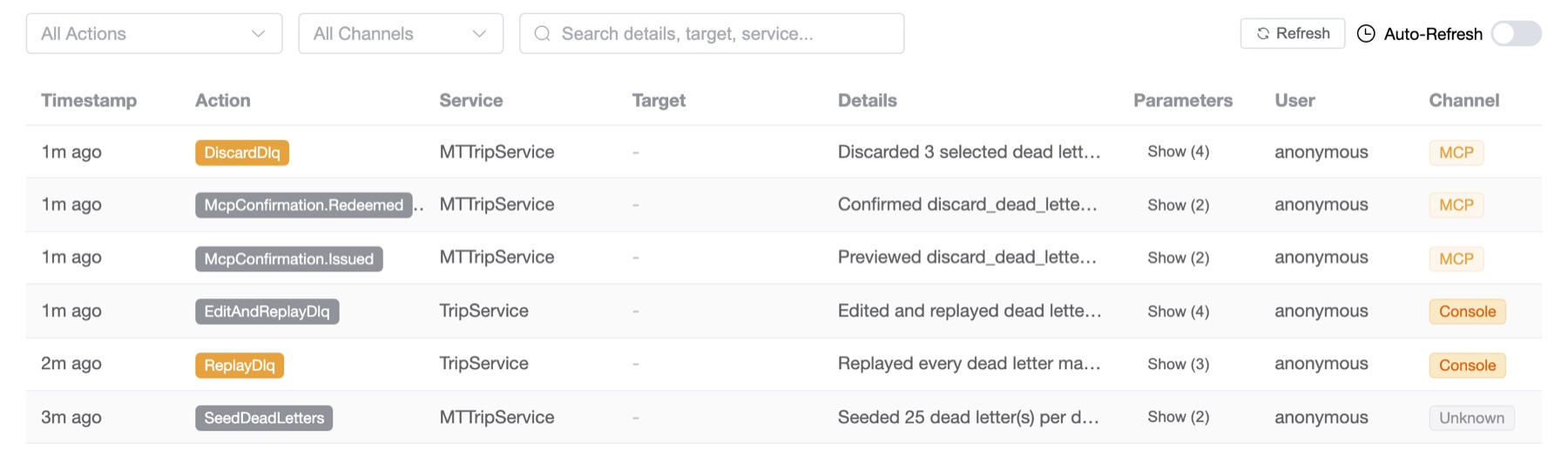
Until 1.1, dead letter actions were not audited at all, from the console or anywhere else. Now every replay, discard and edit writes one row per service it reached. Each row records who acted and through which channel, exactly which messages (the ids, or the query that selected them), whether it was fanned out across the fleet, and the reason. Reads write nothing, and refused operations write nothing.
Letting an AI agent work the queue
This is the part I'm most excited about. CritterWatch ships an MCP server, so an AI assistant such as Claude Code can work your dead letters the same way an operator does, using four tools.
1. Summarize: what is failing, and how much?
summarize_dead_letters("MTTripService")
{
  "serviceName": "MTTripService",
  "totalDeadLetters": 71,
  "groups": [
    { "database": "wolverinedb://postgresql/localhost/mttenant1/mttrips",
      "messageType": "Wolverine.CritterWatch.ChaosMonkey.ChaosSeededReconciliation",
      "exceptionType": "System.ArithmeticException",
      "receivedAt": "local://mttripservice-chaos-seed-3/",
      "count": 3 },
    …
  ],
  "databasesAnnounced": 2,
  "databasesAnswered": 2,
  "partial": false
}
databasesAnnounced against databasesAnswered is the same partial-answer discipline the page follows. If a tenant database fails to answer, the agent is told the counts are a floor, not a total, and the skill we ship for this loop tells it never to report an empty queue on a partial read.
2. Query: the individual messages, with their ids and history.
query_dead_letters("MTTripService", messageType: "…ChaosSeededReconciliation",
                   exceptionType: "System.ArithmeticException",
                   receivedAt: "local://mttripservice-chaos-seed-3/")
{
  "returned": 3,
  "totalMatchedAcrossDatabases": 3,
  "envelopes": [
    { "id": "01a175d5-1c96-443b-adc3-c9321ba605b3",
      "exceptionMessage": "Connection reset by peer",
      "replayable": false,
      "replayCount": 0,
      "firstFailedAt": "2026-10-26T01:31:03Z",
      … },
    …
  ]
}
3. Act: replay the recoverable ones, discard the hopeless ones. Replaying is the recovery path, so replay_dead_letters runs when it is called. Discarding cannot be undone, so the server asks first. Call discard_dead_letters without a token and nothing changes. You get a preview and a token instead:
discard_dead_letters("MTTripService", [3 ids],
                     reason: "Arithmetic poison from the 10-24 load test data")
{
  "confirmationRequired": true,
  "preview": {
    "action": "Permanently delete 3 dead letter(s) from MTTripService's dead-letter storage.",
    "cannotBeUndone": "A discarded message cannot be replayed or recovered."
  },
  "confirmationToken": "MhPTxg67…",
  "message": "Nothing has been changed. To perform this, call discard_dead_letters again with exactly the
              same arguments plus confirmationToken. Show the preview to the user before you do."
}
The agent shows you the preview. If you agree, it makes the same call again with the token, and only then is anything deleted. The token is:
- single-use: replaying it returns
ConfirmationConsumed; - short-lived: it expires after five minutes;
- bound to the exact call: change one message id and you get
ConfirmationMismatch, so an agent cannot preview three messages and then delete three hundred.
This is enforced by the server, not left to the client's goodwill. A client set to auto-approve every tool still cannot skip the preview.
4. Follow it up. The discard's answer carries an operationId, and the operation shows up in the same Operations tab as everything a person did, labelled MCP with the client's name:

A few other things make this safe to turn on:
- Reading and acting are separate permissions. Dead letters carry business data, so
mcp.dlq.readis granted separately fromdlq.replayanddlq.discard. - Every tool says what it is. The
readOnlyHintanddestructiveHintMCP annotations are set on every tool, so a client knows which ones to ask about. - Read-only mode.
CritterWatch:Mcp:ReadOnly = trueregisters only the read tools. It's the shape we recommend for a first rollout: let the agent investigate and explain, and keep the acting to people. - The audit trail names the agent. Agent actions are audited with channel MCP and the client that made the call, next to the confirmation rows that show what the agent was shown before it acted.
That last point came out of tonight's walkthrough, and it's worth saying plainly. While writing this post I found that the dead letter tools in earlier 1.1 previews published their commands without the ticket that identifies an MCP caller. On a console without access control, an agent's replay was audited as channel Unknown. With access control turned on, it was refused, while the tool reported that it had been accepted. That's fixed in rc.3, along with the same omission in four other tools, and there is now a test that fails on any MCP action tool that forgets it.
The AI Skills collection includes a dead letter triage skill that teaches an agent this whole loop: summarize, query, explain, act, check the partial answer, and never discard without showing you first.
What's next
Wolverine 6.54 shipped the foundations for the next step: failure fingerprints that group dead letters by the cause of a failure rather than its exception type, plus archive and restore. The console work to build failure groups on top of that is under way. That means a whole group handled as one tracked job, notes on a group that survive a retry, and the same tools over MCP. We'll write that up when it lands.
Getting it
CritterWatch 1.1.0-rc.3 is on NuGet now. The 1.1 release notes cover everything in the release, and the upgrade notes cover what to do when moving from rc.2, including five new tables if a DBA scripts your database.
- Documentation: Dead Letters for the page and the Operations tab, and MCP for the agent tools, confirmation tokens and read-only mode.
- Licensing: the read-only console is free. Replaying, discarding and editing dead letters, the audit log and the whole MCP server are part of a commercial license. Tiers and pricing are in the CritterWatch plans section, and every JasperFX support plan offers CritterWatch as an add-on (Premium includes it outright).
- Report a bug: JasperFx/ProductSupport is the public tracker.
- Talk to us: the #CritterWatch room in the Critter Stack Discord, which, as you read above, is where the Save & Replay bug got reported in the first place.
If you'd like to try it first, ask us for a trial license on the Get in Touch page.